
Nik Images Auto Convert: automatic WebP conversion and compression
Photographs are the heaviest part of almost any website. A single phone snapshot weighs 3–5 MB, and a page with a dozen of them takes seconds to load even on fast hosting. Nik Images Auto Convert moves your images to the modern WebP and AVIF formats: the same pictures take 3–10 times less space and load noticeably faster.
The plugin solves two problems. The first one is easy: convert everything you upload from now on. The second is hard, and it is exactly why most plugins of this kind are risky on a live site: converting what is already uploaded and already sitting in published pages.
What the plugin does
- Converts new uploads to WebP or AVIF automatically, before WordPress generates the thumbnails — so every size is created in the new format from the start.
- Lets you set the quality with a slider and immediately see what it costs on your own photos.
- Bulk converts the existing media library and rewrites every image URL in posts, pages, custom fields, widgets and theme settings.
- Keeps copies of the originals, so any conversion can be undone.
Installing and finding the settings
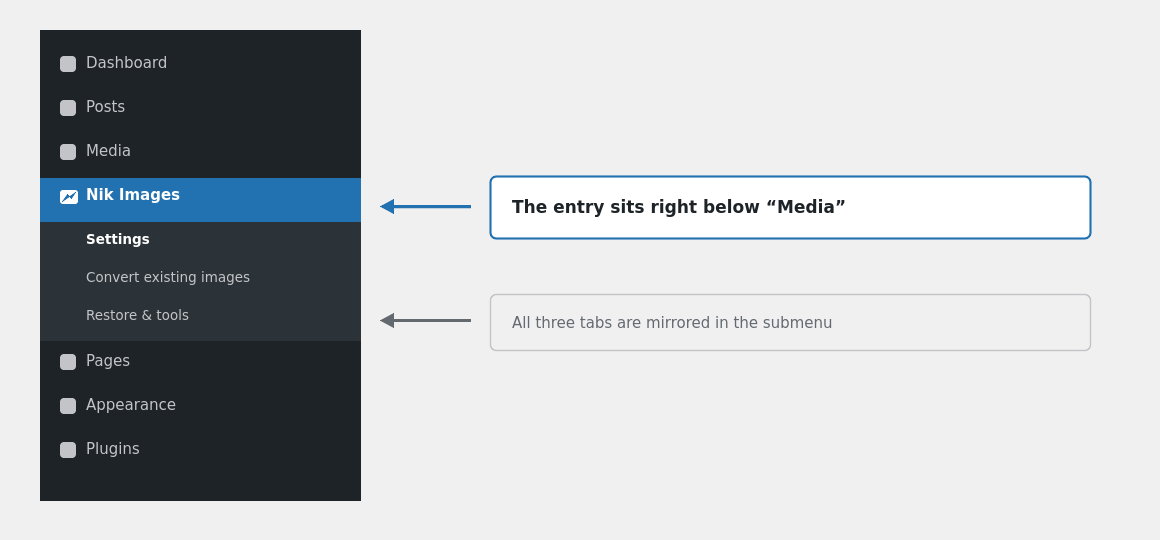
Once activated, a separate Nik Images menu entry appears in the admin, right below Media. The plugin’s three tabs are mirrored in the submenu, so the section you need is one click away.
- Upload the plugin under Plugins → Add New → Upload Plugin and activate it.
- Open Nik Images → Settings.
- Check the image library line at the bottom of the page — the plugin reports exactly what your server can do: Imagick, GD, WebP and AVIF support.
💡 If your server cannot write the format you picked, the plugin says so in a red banner and refuses to save a setting that would silently do nothing.
The main settings
The two things that matter most are the format and the quality.
Format
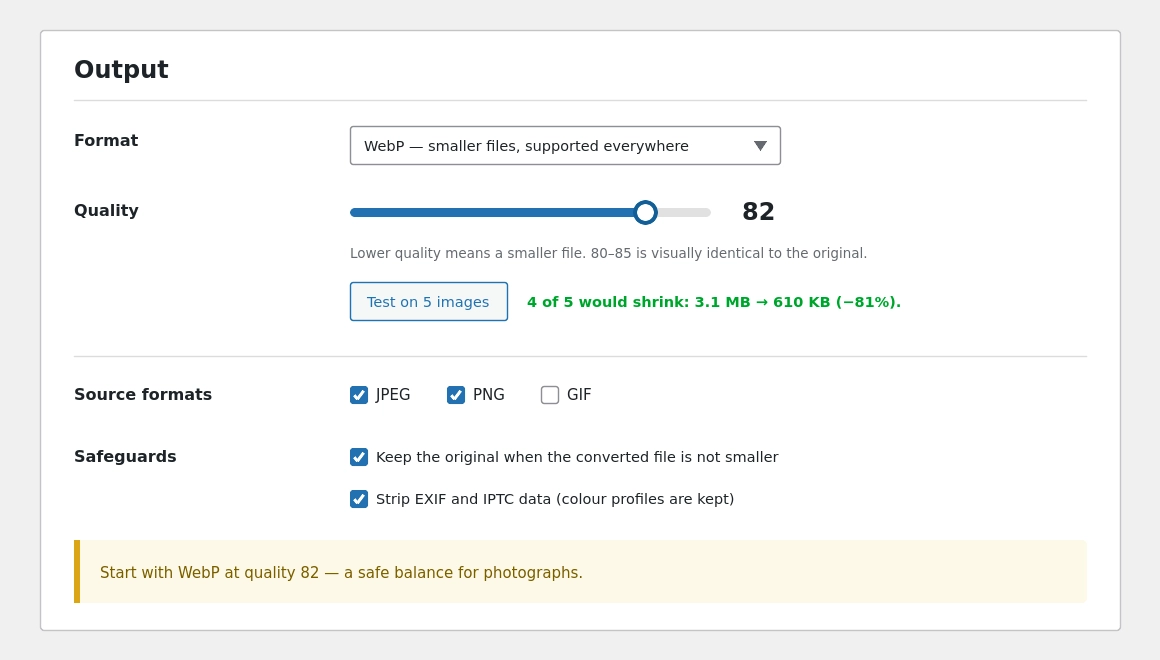
- WebP — the right choice for 99% of sites. Supported by every browser for years now, and files are 2–4 times smaller than JPEG.
- AVIF — even smaller files, but encoding is noticeably slower and older servers may not support it at all.
- Compress only — the plugin recompresses JPG as JPG and PNG as PNG. Filenames never change, so nothing in your content has to be rewritten. The safest option if you would rather not touch any URLs.
Quality
A slider from 1 to 100. The lower the value, the smaller the file and the more visible the loss. The rules of thumb are simple:
- 80–85 — visually identical to the original. Recommended for photographs.
- 60–75 — the difference shows under close comparison, but is fine for thumbnails and background images.
- below 50 — texture and fine detail start to disappear. Use deliberately.
💡 Do not guess: press Test on 5 images. The plugin takes five random images from your library, converts copies of them in a temporary folder and reports the real saving. Nothing on the site changes.
Safeguards
Two checkboxes worth leaving on:
- Keep the original when the converted file is not smaller. This is not a formality. An already compressed JPEG — one downloaded from social media, say — can come out bigger as WebP; we measured a 39% increase on a real file. With this on, such images are simply left alone.
- Strip EXIF and IPTC. Camera data and GPS coordinates can add tens of kilobytes to every photo. Colour profiles are preserved, so colours do not shift.
Uploading ready made WebP and AVIF files
A separate checkbox, Allow WebP and AVIF files to be uploaded to the media library. WordPress supports both formats out of the box (WebP since 5.8, AVIF since 6.5), but sites regularly lose them again to security plugins, host level restrictions on file types and themes that overwrite the upload_mimes filter wholesale. The plugin puts them back.
It also cures the “Sorry, this file type is not permitted for security reasons” error, which appears when the server’s file type library is too old and sees a WebP as an anonymous binary. The extension is never taken at face value: a file is accepted only when its own header proves it really is WebP or AVIF. A script renamed to .webp is still rejected.
How new uploads are converted
The plugin hooks into the upload itself, before WordPress starts cutting thumbnails. That way every size — thumbnail, medium, large, theme sizes and WooCommerce sizes — is created in the new format directly, instead of being converted one by one afterwards.
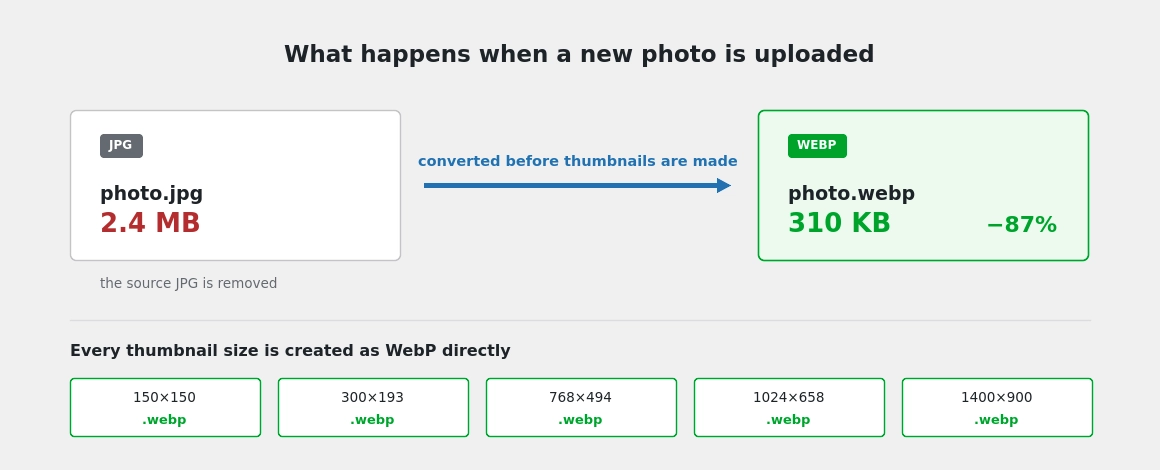
The source JPG is deleted after a successful conversion: nothing references it any more, and keeping it would waste exactly the space the whole exercise is meant to save. The original still sits on your own computer.
⚠️ Orientation of phone photos is handled correctly. WebP and AVIF carry no EXIF rotation flag that browsers act on, so the plugin bakes the rotation into the pixels — your shots will not end up sideways.
Bulk converting images already on the site
This is the plugin’s main feature. It works through the whole media library: for each image it converts the full size file, every thumbnail, and the large original WordPress keeps for oversized uploads.
- Back up your database. The conversion rewrites URLs across the whole site — the backup is your safety net.
- Open Nik Images → Convert existing images.
- Check the summary: format, quality, whether URL rewriting and original backups are on.
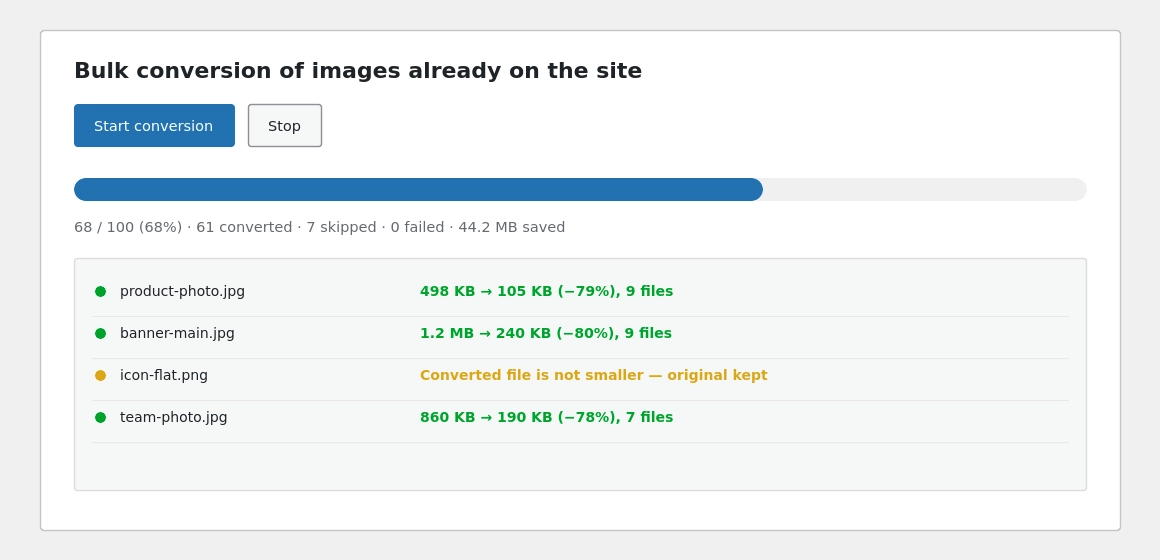
- Press Start conversion. The job runs in small batches, with live progress and a log.
- You can leave the tab open, but if you interrupt it, starting again continues where you left off — images already handled are skipped.
The log shows three kinds of lines: green for a successful conversion with the saving, amber for skipped images (the converted file was not smaller, for example), and red for an error with its reason.
⚠️ On large libraries it is more convenient to run the conversion through WP-CLI: wp nik-images run is faster and does not depend on a browser tab staying open.
Why published pages keep working
When photo.jpg becomes photo.webp, every link to the old name breaks. That is exactly what burns people who convert by hand. The plugin rewrites those references everywhere it can reach.
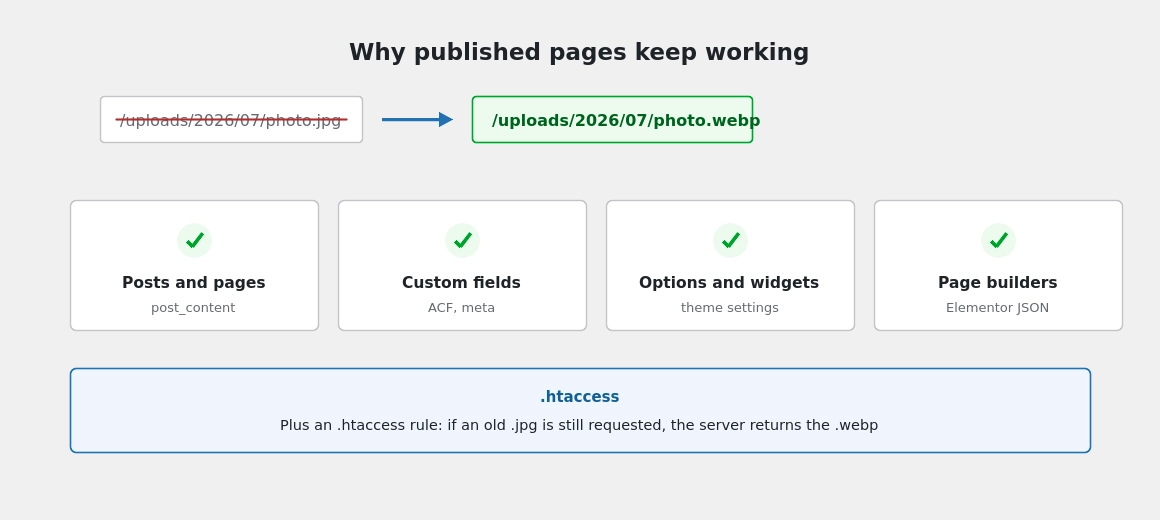
Every way of writing the address is handled: absolute, http and https, protocol relative, root relative and percent encoded. The escaped slash form is handled separately — that is how page builders store URLs inside JSON.
Serialized data (ACF custom fields, theme settings, widgets) is not hacked with a plain text replace: the plugin unserializes it, changes the values and rebuilds it, so string lengths stay valid. If a value cannot be rebuilt with complete certainty, the plugin leaves it alone entirely — one stale link is better than corrupted data.
💡 There is one more safety net: a rule in .htaccess. If an old address survives somewhere the plugin cannot reach — hard coded in a theme template, on an external site, in a search engine cache — the server returns the converted file instead of a 404. Enable it with a checkbox in the settings.
Rolling everything back
As long as “Keep the original files” is on, copies of the source files live in wp-content/uploads/iac-originals/, and each attachment carries a record of what was converted and how.
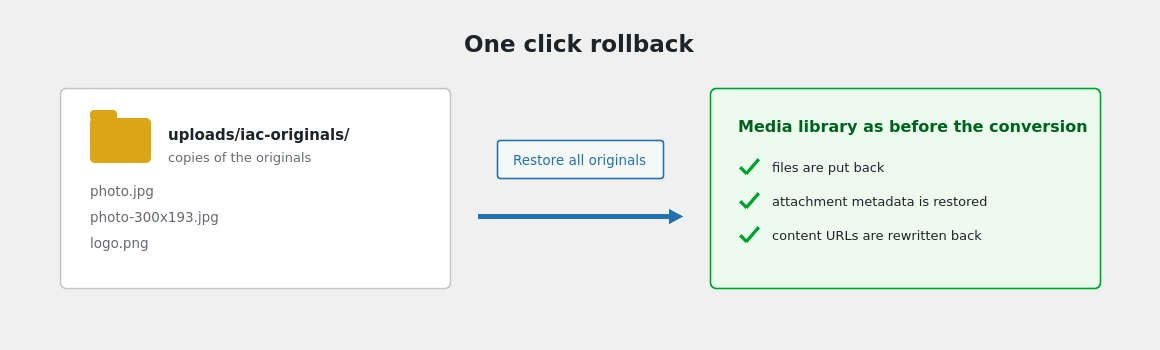
The Restore all originals button on the “Restore & tools” tab puts the files back, restores the media library records and rewrites the content URLs back to the original filenames. A single image can be rolled back too, straight from the media list, in the “Conversion” column.
⚠️ Deleting the plugin does not return your images to their original format. If you want to roll back, press “Restore all originals” first, and only then delete the plugin.
Server requirements
You need PHP 7.4 or newer, WordPress 6.0 or newer, and one of the image libraries: Imagick or GD with WebP support. Modern hosting has this almost without exception. AVIF needs Imagick with the matching delegate, or PHP 8.1+ with GD. The plugin prints the exact capabilities of your server right on the settings page.
Frequently asked questions
Which quality should I choose?
For photographs on a website, 80–85 — visually indistinguishable from the original. Do not rely on general advice: press “Test on 5 images” and the plugin will measure the real saving on your own files.
Why did some images stay JPG or PNG?
Because they would have come out bigger in the new format. Small flat colour graphics — icons, logos, diagrams — often compress better as PNG, and the same happens with photos that were already heavily compressed. WordPress stores the file type per thumbnail size, so a mixed set works perfectly well.
What about animated GIFs?
The plugin leaves them alone. Converting one would keep only the first frame, so such files are always skipped.
Does it work with Elementor, ACF and WooCommerce?
Yes. Page builder data stored as JSON, ACF fields stored as serialized meta and WooCommerce product galleries are all rewritten along with everything else.
Can I try it on part of the site first?
Yes. Pick the “Compress only” format and files are recompressed without being renamed, so no URLs are touched at all. Or convert individual images with the button in the media list and run the bulk job later.
How long does a bulk conversion take?
It depends on the size of the library and the power of the hosting — roughly a few images per second. For libraries of thousands of files, run it through WP-CLI.
Speed up your site in one evening
Install the plugin, set the quality to 82 and run the bulk conversion. The originals are kept, and your pages keep working exactly as before.
By downloading and installing the plugin on your site, you agree to the terms below.
Reviews
No reviews yet — be the first to share your experience.
Reviews can be left by users who have downloaded or purchased this plugin — that is why every review here is genuine.